Appearance
Logging in
In this section
- Learn how to log in to the SEMS AIIU application
- Learn how to reset your password
- Learn how to logout of the application
Log in
To access the AIIU SEMS application, you need your username and password. Usernames and passwords are provided by the AIIU SEMS administrator.
First open your web browser.
TIP
It is best to use the latest version of your browser for the best experience, we recommend using Google Chrome.
To navigate to the login page for the application, type in your website address https://aiiusems.com.au/
Then enter your email address (username) and the supplied password into the form and press the login button.
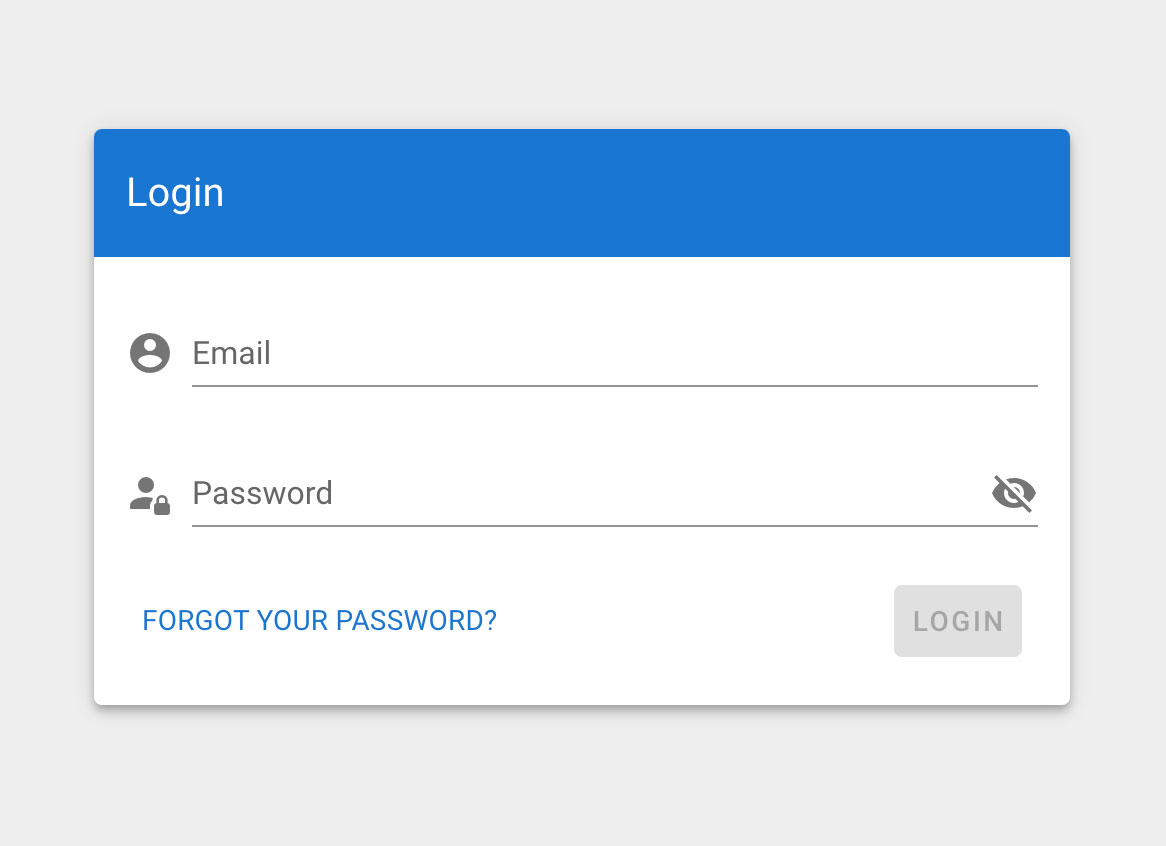
If this is the first time you have logged into the application, you will be be taken to the enable two factor authentication(2FA) page. Otherwise you will be asked to enter your 2FA code to continue to login.

Enter your code from your authenticator application and click the verify button. If you have a valid token you will be able to access the AIIU application. If you have any issues please see the 2FA section for further information.
INFO
AIIU SEMS application is based on a user-privileged access model, therefore you may not be able to access all of the sections/content available in the application. If you believe you need further access, please contact the AIIU administrator.
Lost password
You should have been provided a password before attempting to log in. If you have forgotten your password you can reset your password by clicking on the forgotten your password link and entering your AIIU email address.
If you are managing other users and want to reset a password for somebody else, refer to users section.
Logout
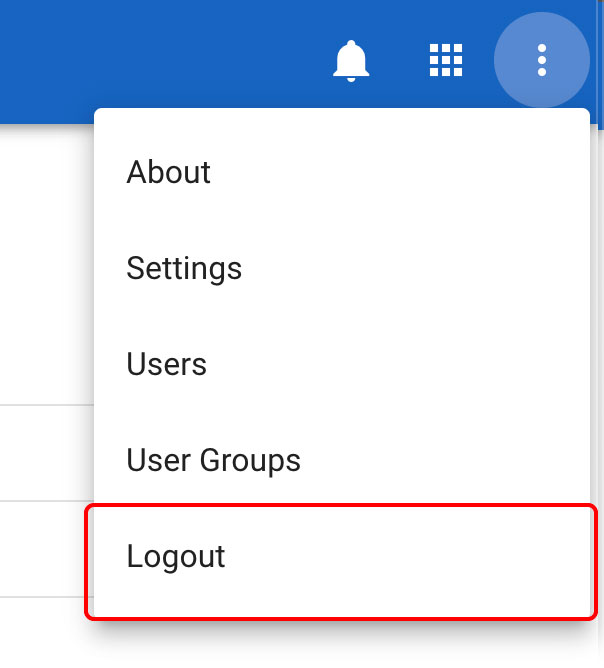
When you have completed your work you can log out of the AIIU SEMS application by clicking on the settings menu in the top right corner and selecting log out.
WARNING
If you are using a computer that other users have access to, you should always log out when you have completed your work.
If you forget to log out, you will automatically be logged out after a certain period of time.